
Theme Master Guide Installation
Complete Installation & Setup Guide
Welcome to the official Theme Master installation guide. This documentation will help you install, configure, and activate your theme correctly on your WordPress website.
Whether you are a beginner or an experienced developer, this guide provides a step-by-step process to ensure smooth installation without errors.
Before You Start
Before installing the theme, make sure your hosting server meets the following requirements:
Requirement | Recommended |
PHP Version | 8.0 or Higher |
WordPress Version | Latest Version |
MySQL Version | 5.7+ |
Memory Limit | 256MB or Higher |
HTTPS SSL | Enabled |
Upload Limit | 64MB or Higher |
Download Theme Package
After purchasing or receiving the theme package, download the ZIP file from your account dashboard.
The package normally contains:
- Main Theme ZIP
- Child Theme
- Documentation
- Demo ImportFiles
- Required Plugins
- License Information
IMPORTANT:
Do NOT extract the main theme ZIP file before uploading it to WordPress.
Installing Theme via WordPress Dashboard
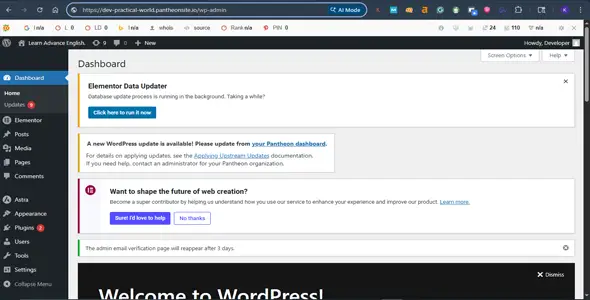
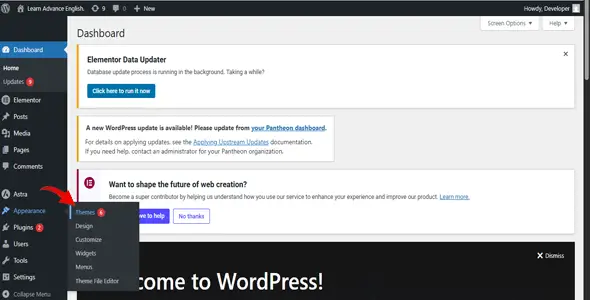
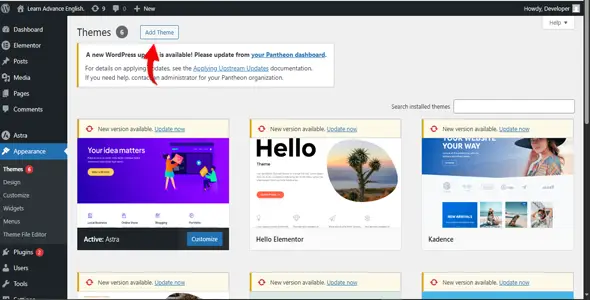
Step 2 — Navigate to Themes
From the dashboard:
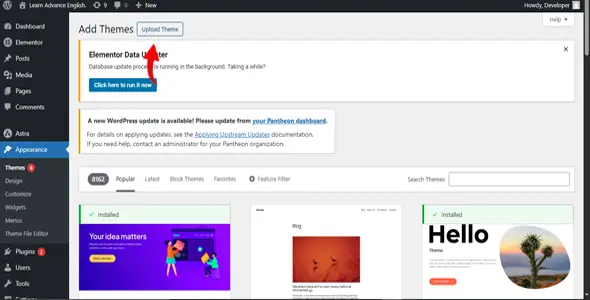
Appearance → Themes→ Click→Add new→Then Click→Upload theme
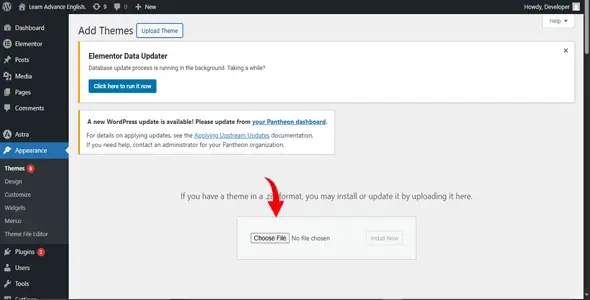
Step 3 — Upload Theme ZIP File
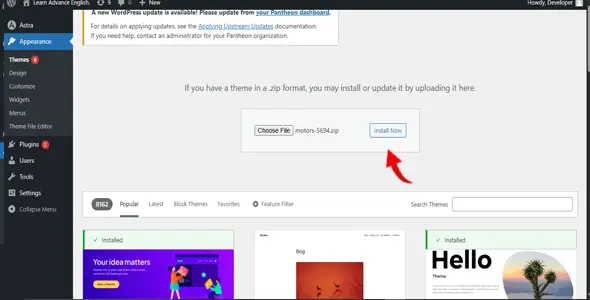
Click→Choose file→Select your theme→Then click intall Now
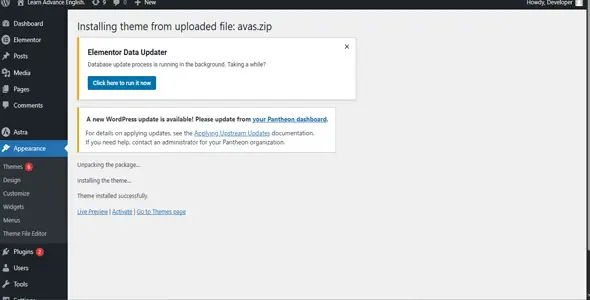
Wait until the upload process completes successfully.
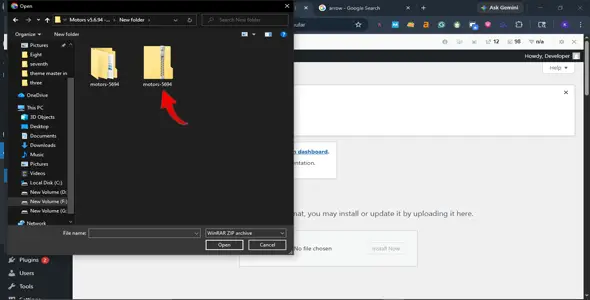
Step 4 — Activate Theme
After installation completes:
Click→ Activite
Your theme is now installed successfully.
Installing Required Plugins
After activating the theme, WordPress may display a notification asking you to install required or recommended plugins.
Click—> Begin Installing Plugins
Install and activate all required plugins.
Recommended plugins may include:
These plugins provide additional functionality and improve theme performance.
Importing Demo Content
Demo import helps you create a website identical to the live demo.
Navigate to—> Appearance → Import Demo Data OR Theme Master → Demo Import
Then:
IMPORTANT:
Do not refresh or close your browser during demo import.
The import process may take several minutes depending on your hosting speed.
Configure Permalink Settings
After importing demo content, configure permalinks properly.
Navigate to—> Settings → Permalinks
Select:
This step helps avoid broken links and page errors.
Theme Customization
You can customize your website from:
Appearance → Customize
Available customization options include:
- Logo Upload
- Header Layout
- Footer Builder
- Typography Settings
- Color Management
- Sidebar Controls
- Blog Layouts
- Mobile Responsiveness
- Performance Settings
Theme Master provides a user-friendly customization experience without requiring coding knowledge.
Editing Pages with Elementor
If your theme uses Elementor page builder:
Open any page and click → Edit with Elementor
Using Elementor, you can:
- Build pages visually
- Drag and drop sections
- Edit content easily
- Replace images
- Customize layouts
- Create landing pages
No programming knowledge is required.
WooCommerce Setup
To create an online store using WooCommerce:
Navigate to → WooCommerce → Settings
Configure:
- Store Information
- Payment Gateways
- Shipping Methods
- Currency Options
- Product Pages
- Tax Settings
Theme Master is fully optimized for WooCommerce compatibility.
Updating Theme Master
Keeping your theme updated is important for security and performance.
Automatic Update
Navigate to → Dashboard → Updates
Configure:
Theme Master is fully optimized for WooCommerce compatibility.
Manual Update
- Download the latest theme version
- Backup your website
- Remove old theme files
- Upload updated ZIP file
- Activate updated version
Always create a complete backup before updating.
Child Theme Installation
We strongly recommend using the included child theme.
Benefits of Child Theme:
- Protects custom changes during updates
- Keeps modifications secure
- Easier future maintenance
- Better development workflow
Install the child theme using the same process as the parent theme.
Common Installation Errors
Stylesheet Missing Error
Cause –> Incorrect ZIP file uploaded –>Solution –>Upload the installable Theme Master ZIP file only.
Memory Exhausted Error
Cause:
Low PHP memory limit –>Solution –>Increase server memory limit to at least 256MB
Demo Import Failed
Cause:
Low server resources or timeout issues –>Solution
- Increase max execution time
- Increase upload limits
- Contact hosting provide
Recommended PHP Settings
Setting | Recommended Value |
|---|---|
memory_limit | 256M |
upload_max_filesize | 64M |
post_max_size | 64M |
max_execution_time | 300 |
max_input_vars | 3000 |
Performance Optimization Tips
To improve website speed and performance:
- Use caching plugins
- Optimize images before upload
- Enable GZIP compression
- Use CDN services
- Minify CSS and JavaScript
- Remove unused plugins
Security Recommendations
For better website security:
- Keep WordPress updated
- Use strong passwords
- Install security plugins
- Enable SSL certificate
- Create regular backups
- Avoid using nulled themes or plugins
Support Information
If you experience any issue during installation or setup, contact our support team with the following details:
- Website URL
- WordPress Admin
- Access Error Screenshot
- Hosting Information
Our technical support team will help resolve your issue as quickly as possible.
Final Words
Thank you for choosing Theme Master.
We built this theme with modern design standards, high performance, responsive layouts, SEO optimization, and easy customization features to help you create professional websites effortlessly.
We hope you enjoy using Theme Master and building amazing websites with it.